
This week is about control: what Okou uses, what it can reach, and what it costs. You can set the model and how hard it thinks before you send, add your own tools, let it work directly on your machines, and see exactly where your team's credits went.
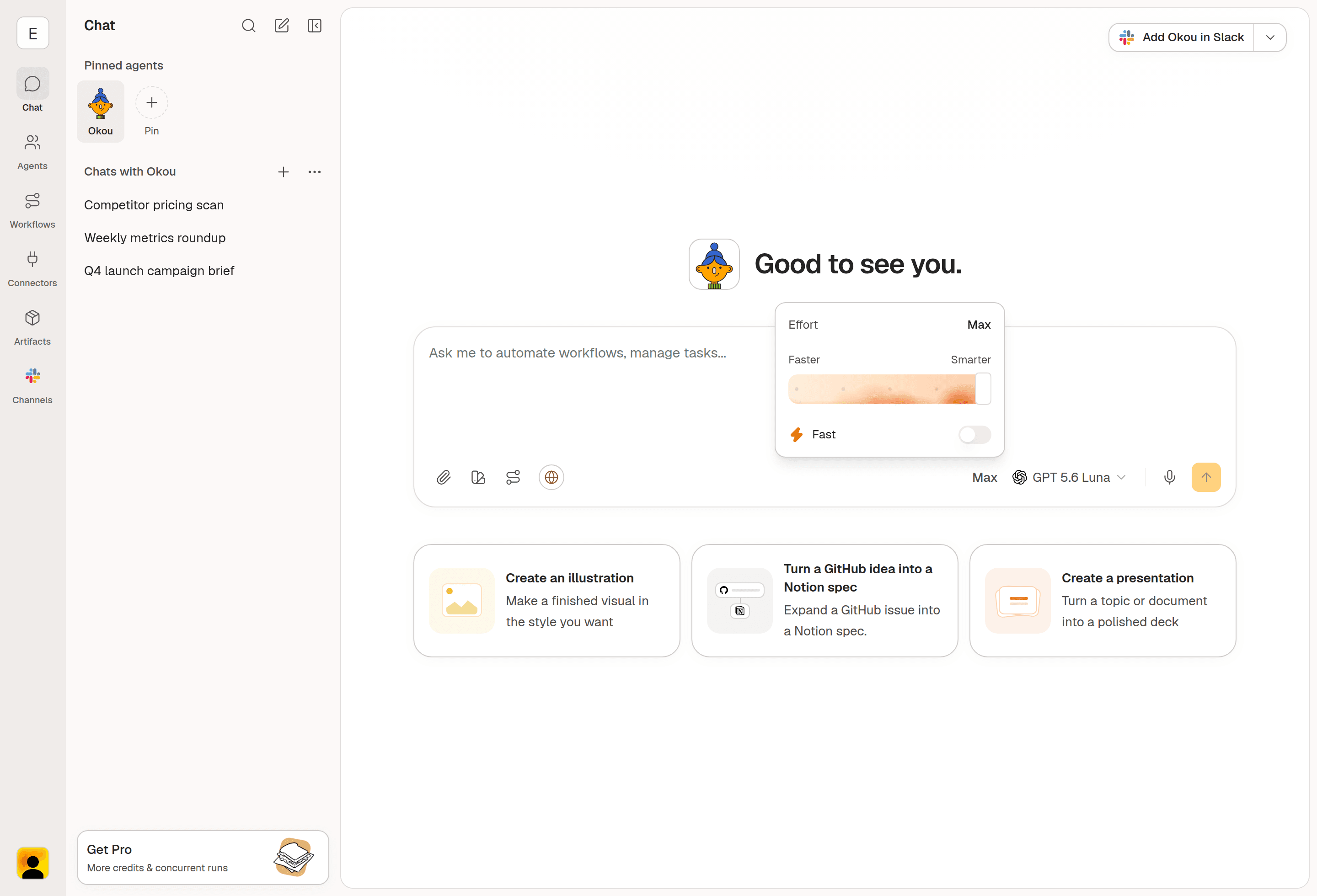
Choose your model, effort, and speed before you send
Open the model menu in the composer and you'll find the full list of models, plus two new controls. Effort is a slider from Faster to Smarter that decides how much thinking goes into your request. Fast trades a little quality for a quicker answer.
Set them before you send, and that's what your request runs with.
Custom MCP connectors (for developers)
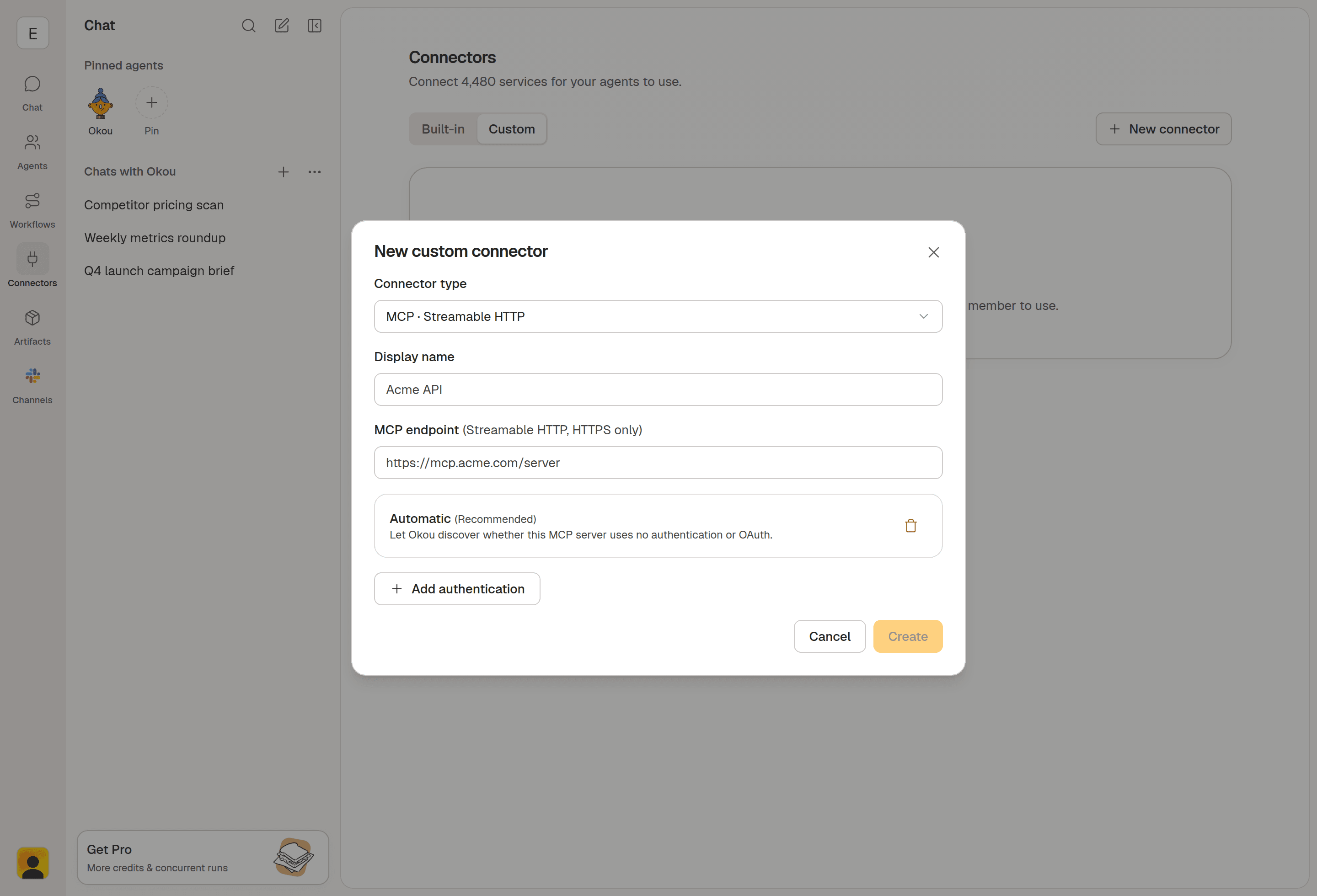
If a tool your team uses has an MCP server, you can now add it to Okou yourself. Paste its address, give it a name, and it behaves like any other connector — available to everyone in your workspace.
Okou will usually work out how to sign in on its own. If the tool needs credentials instead, you can enter them, and whatever you connect stays under the same permissions as everything else in your workspace.
SSH access (for developers)
Give Okou a server and it can work on that machine directly, instead of you copying output back and forth. Connect straight to a host, or through Cloudflare Access if that's how your team gets in.
If something is already running when you add a host, start it again to pick up the new access.
See where your team's usage actually goes
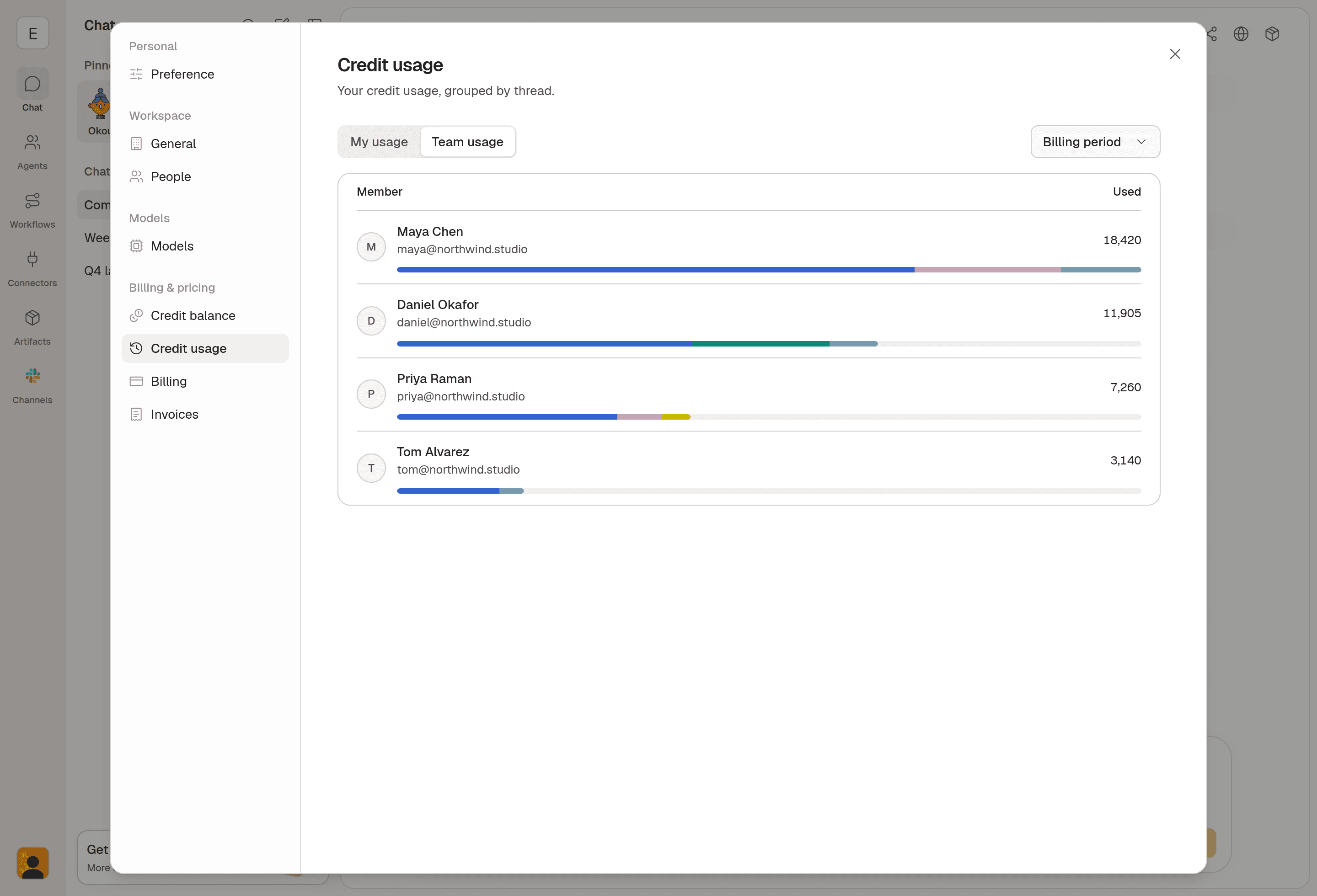
Team usage now shows what each member spent and which providers they used, not just a running total. Nothing to export.
Usage is also grouped by thread, so "we spent more this month" becomes a specific conversation you can open and read. That is usually the difference between a number and a decision.
Telegram keeps one session per agent and model
If you talk to Okou in Telegram, each agent and model now gets its own conversation with the bot, instead of everything sharing one.
So you can switch to a different agent mid-chat, come back later, and the earlier conversation is still sitting there with its own history — rather than both of you talking over the same thread.
Watch what Okou is actually doing
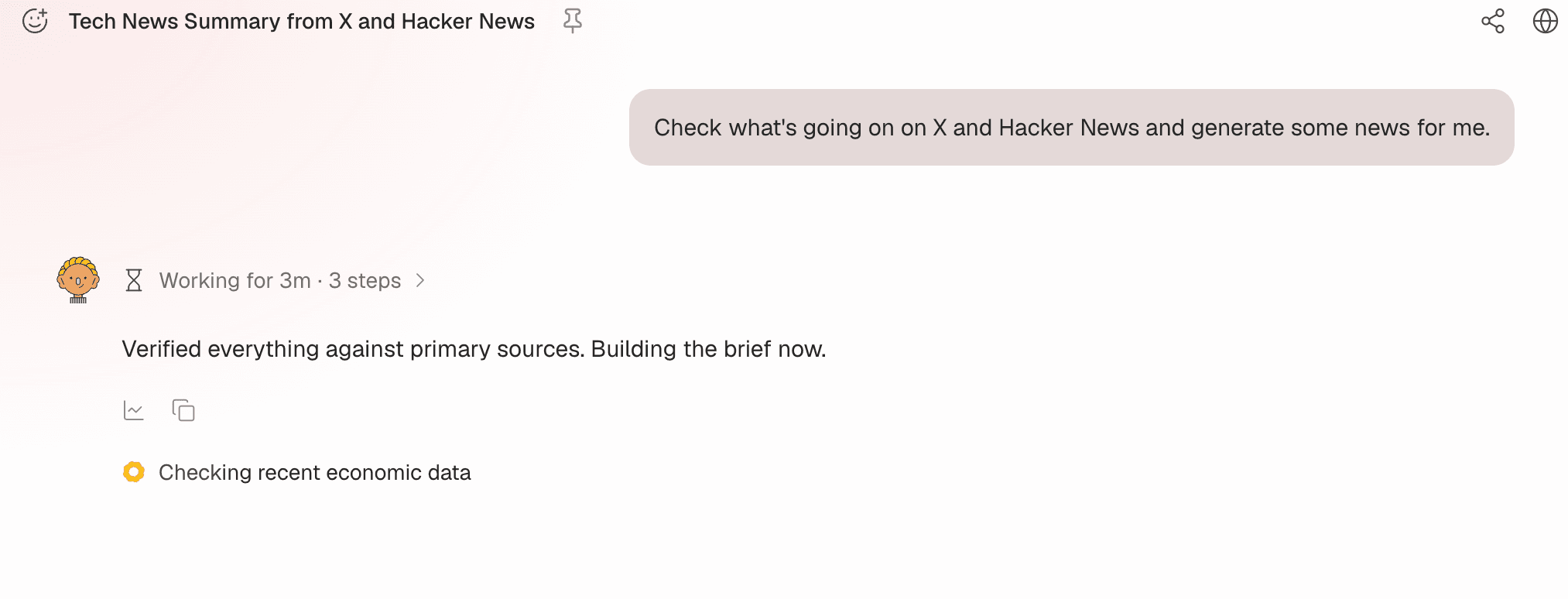
While Okou is working, it now tells you what it is doing — "Checking recent economic data" — instead of a generic waiting message, along with how long it has been going and how many steps it has taken.
It looks like a small change and it isn't. You can tell the difference between Okou reading your files and Okou waiting on something slow.
Voice input
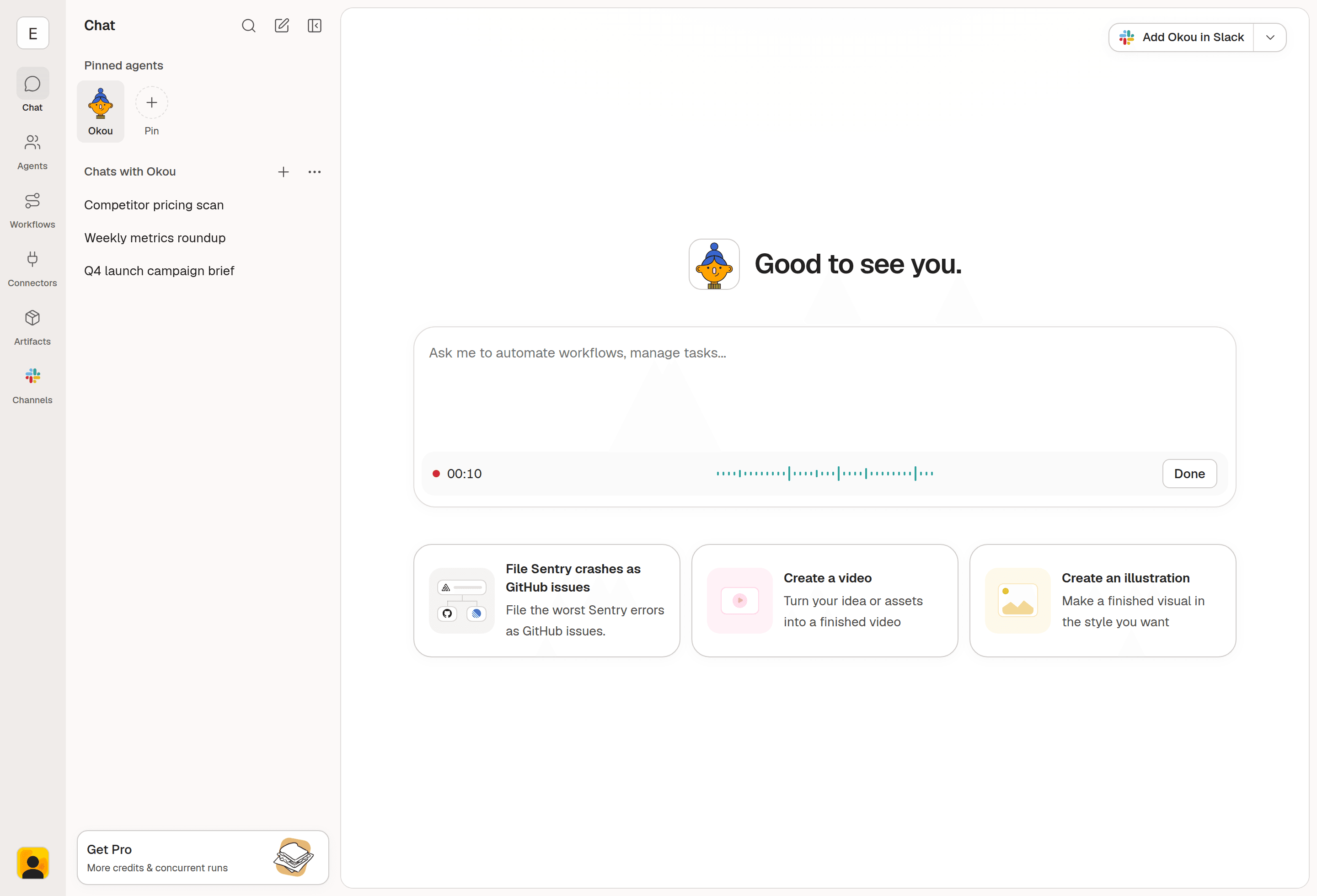
Press Ctrl+Shift+E, or click the microphone in the composer, and start talking. It works anywhere you can type.
Okou transcribes as you speak and tidies up the wording at the end. If your connection drops mid-sentence, the recording isn't lost.
Read Slack
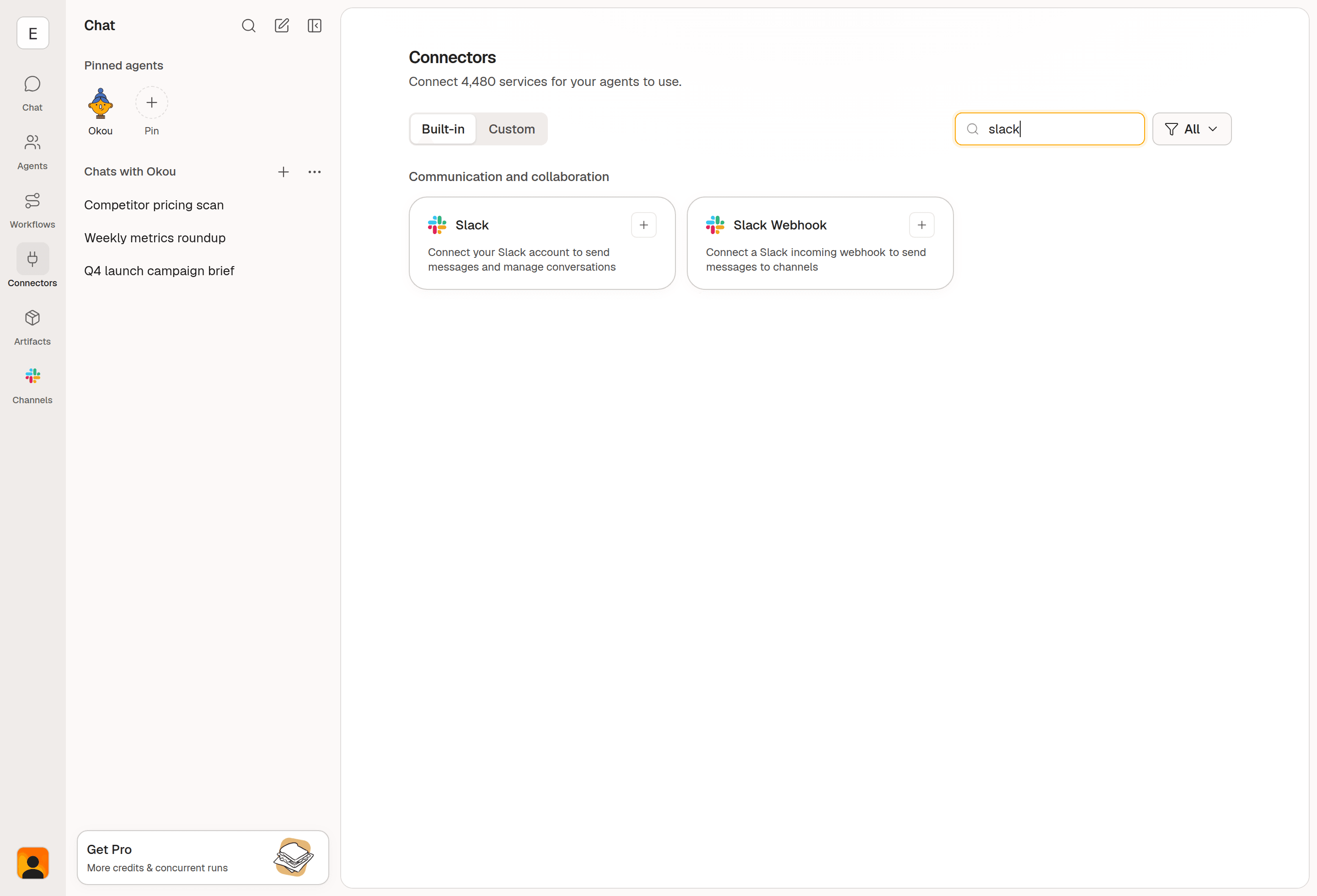
Okou can find your Slack channels, read their history, and follow threads. Ask what happened in a channel while you were away, or point it at a thread and let it pick up the context itself instead of pasting it in.
It only ever reads what you have given it access to.
That's what's new this week.


